Desktop login, sudo and su
On Ubuntu desktops in the fleet, the same package gates the login screen, the lock screen, the text console, sudo, su and polkit admin prompts. The password is asked first, then the phone. A single computer you want push on is set up the same way, as a fleet of one.
Turn it on
Configure the machine and enrol its users first (the two previous pages), and add the users to u2mfa once status shows them paired. Then:
sudo pam-auth-update --enable u2auth
sudo u2auth-admin check
pam-auth-update is Ubuntu’s own tool for adding a module to common-auth. It is reversible (--disable u2auth), it survives package upgrades, and it never edits the per-service files. The profile applies only to members of u2mfa, and only to these services: gdm-password and the gdm-smartcard variants, login, su, su-l, sudo, sudo-i and polkit-1. sshd is deliberately not in the list: SSH has its own key-plus-U2 setup, and adding U2 to its common-auth would demand a password as well. Built from source, install pam/pam-configs/u2auth to /usr/share/pam-configs/u2auth first.
Close the ways around it
u2auth-admin check reports every way a login can skip U2 Secured on this machine, and exits 1 if any login can skip it right now. On a stock Ubuntu desktop it finds two:
| Way around | Fix |
|---|---|
| Fingerprint login: gdm-fingerprint uses the fingerprint alone and never reaches common-auth. ubuntu-desktop-minimal installs it by default. | Turn fingerprint login off for the login screen. check prints both steps: Ubuntu ships no /etc/dconf/profile/gdm, so the setting is ignored until that profile exists. |
| Automatic or timed login: gdm-autologin asks for nothing at all. | Settings → Users → Automatic Login off. |
| A login service missing from the profile: it would ask for the password only. | check names it. Reinstall the package to restore the profile. |
Outside PAM
- Recovery mode (GRUB → Advanced options → recovery mode) gives a root shell with no login at all. Set a GRUB password, or use full-disk encryption.
- The full-disk encryption passphrase at boot is not PAM. It protects the disk, and U2 Secured protects the sign-in after it. Neither replaces the other.
What users see
- 1Type the password at the login screen, the lock screen, an admin prompt, or sudo.
- 2The screen shows “Select 60 in U2 Secured on your phone to approve.”, with a spinner while it waits.
- 3The phone shows three numbers under the fleet app’s name, and names the sign-in, for example “Desktop sign-in as alex on web-01”. The user taps 60.
- 4The computer signs in by itself: no Enter, unlike SSH. A wrong number or Deny refuses the sign-in.
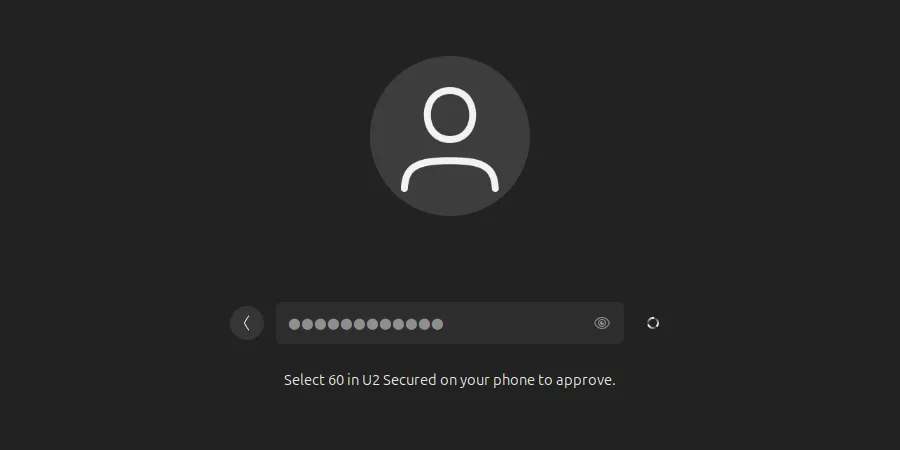
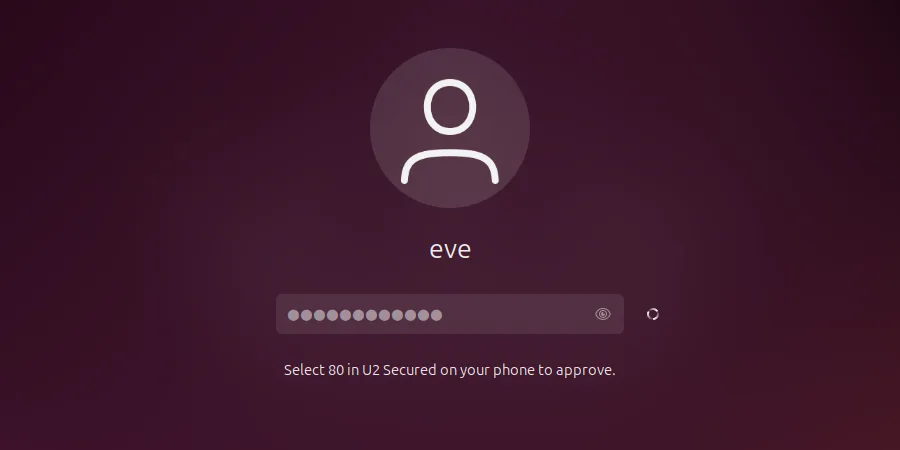
An approval shows as a banner when the app is in the background. With the app open, it appears on the Approvals tab within a few seconds. A request lasts 60 seconds.
sudo, sudo -i and su work the same way: after the password, the terminal shows the number and waits, and the command runs as soon as the user taps it.

When the phone can’t answer
| The screen says | What to do |
|---|---|
| U2 Secured: no answer from your phone. | Shown after 60 seconds with no tap, for example when the phone has no data. Type the 6-digit code from the app, or a backup code, in the box “Code from your authenticator app or a backup code”. |
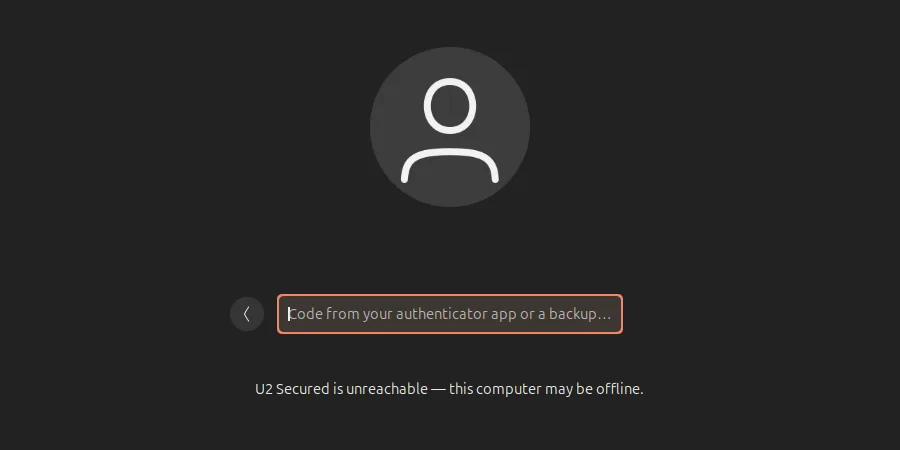
| U2 Secured is unreachable — this computer may be offline. | The same: a code from the app, or a backup code. The computer checks it itself, and the app makes codes without a connection. Common at boot, when Wi-Fi connects only after you log in. |
| Lost contact with U2 Secured — this computer may be offline. | The connection dropped while waiting for the phone. Use a code. |
| Back to the password, after a wrong number or Deny | The sign-in was refused, and the phone will not ask again for it. Type the password again for a new number. Someone who did not start that sign-in should change their password: someone else has it. |
| U2 Secured: too many sign-in requests from this computer — wait a few minutes, or use a code. | Too many requests in a short window. Use a code, or wait. |
| U2 Secured’s monthly push limit is reached (ask your administrator). | The app’s plan has no pushes left this month. Codes keep working; the administrator upgrades the plan. |
| U2 Secured: your phone has not finished pairing. | Finish pairing in the app’s Linked tab, or ask the administrator to run enroll again. Use a code meanwhile. |
| U2 Secured refused this machine’s request (ask your administrator). | The machine was revoked in the portal or its key was rejected. Only codes work until the administrator fixes it. |
| Code not accepted. | Use the entry for this fleet, and check the phone sets its time automatically. A backup code works only once. |
| Too many wrong authenticator codes. Use a backup code, or wait 15 minutes. | As it says. |
Codes and backup codes
- The app entry for the fleet (named after issuer in the config, for example “Acme servers”) shows a new 6-digit code every 30 seconds, with or without a connection.
- Each backup code works once, on the machine that issued it; a used one is refused. When few are left, the screen says so after one is used.
- While the computer is online, the screen waits for the phone and has no code box. With a phone that has no data, wait: after 60 seconds the code box appears. Deny does not offer a code, it refuses.
- The administrator issues a new set of backup codes on a machine; the old set stops working:
sudo u2auth-admin backup-codes alex # a new set of 10; the old ones stop workingWatch the push quota
When the app’s plan runs out of pushes, every gated login on every machine falls back to codes, and users without offline codes cannot sign in at all. The helper logs reason=plan_limit: alert on it.