Your own laptop
For one person on their own Ubuntu computer: free, codes only, and no U2 Secured account. After your password, you type the 6-digit code from an authenticator app (U2 Secured Authenticator or any other). The computer checks it itself and nothing is sent anywhere, so it works the same online and offline.
Want a tap on your phone instead of a code?
Push needs a U2 Secured app to send it. Create a free Developer account and app, then set the laptop up as a fleet of one: install, create the app and configure, enrol yourself, and turn on the desktop login (Desktop login, sudo & su). The Developer plan is free for 100 pushes a month. Create a free Developer account · Desktop login, sudo & su
Where it asks
- The login screen and the lock screen.
- Admin prompts, for example when installing software.
- sudo, sudo -i, su and the text console (Ctrl+Alt+F3).
- Not SSH into this computer: that is set up separately (Enrol users & turn on SSH).
What you’ll need
- Ubuntu 22.04 or newer on amd64 or arm64 (tested on 24.04 with GNOME), and sudo on the computer.
- An authenticator app on your phone. U2 Secured Authenticator is free; any app that reads a TOTP QR code works.
- Ten minutes, and a second terminal open while you test.
Install the package
Add the signed U2 Secured repository and install u2auth from it, so apt upgrade keeps it up to date. The key’s fingerprint is B725 4213 9302 02C4 8B19 6810 E6C4 2653 4D95 43BA. Works on Ubuntu 22.04, 24.04 and Debian 12 or newer, Intel/AMD and ARM alike.
curl -fsSL https://u2secured.com/downloads/linux/u2secured.gpg | sudo tee /usr/share/keyrings/u2secured.gpg > /dev/null
gpg --show-keys /usr/share/keyrings/u2secured.gpg   # B725 4213 9302 02C4 8B19  6810 E6C4 2653 4D95 43BA
echo "deb [signed-by=/usr/share/keyrings/u2secured.gpg] https://u2secured.com/downloads/linux stable main" \
  | sudo tee /etc/apt/sources.list.d/u2secured.list
sudo apt update && sudo apt install u2auth
u2auth-admin help
Installing switches nothing on: the sign-in profile ships off, and only the setup turns it on. apt also installs qrencode, so the setup can show a QR code to scan; with dpkg -i, add it yourself (sudo apt install qrencode).
Set it up
Keep a root shell open
Before you start, open a terminal, run sudo -i, and leave it open until a new sudo works in another terminal. If anything is wrong, that root shell is how you turn it off again (u2auth-admin disable). The setup itself switches nothing on until you have typed a correct code, so a slip there cannot lock you out.
sudo -i # a root shell to keep open while you test- 1
Run personal-setup
bashsudo u2auth-admin personal-setup # protects the login that ran sudo; --user alex for anotherIt protects the login that ran sudo (--user names another). With no config yet, it writes one in codes-only mode and says “Wrote /etc/u2auth/u2auth.conf (TOTP-only personal mode: nothing is sent anywhere).” --issuer sets the name of the entry in your app; it defaults to “U2 — ” and the computer’s name.
- 2
Add the entry to your app
The terminal says “Offline code: scan this in U2 Secured Authenticator (Add account), or enter the key by hand.” and shows the key, an otpauth:// link and, with qrencode, a QR code. In U2 Secured Authenticator: Codes tab → + → Add account → Scan QR code, or Enter manually and type the key. Any other authenticator app works the same way.
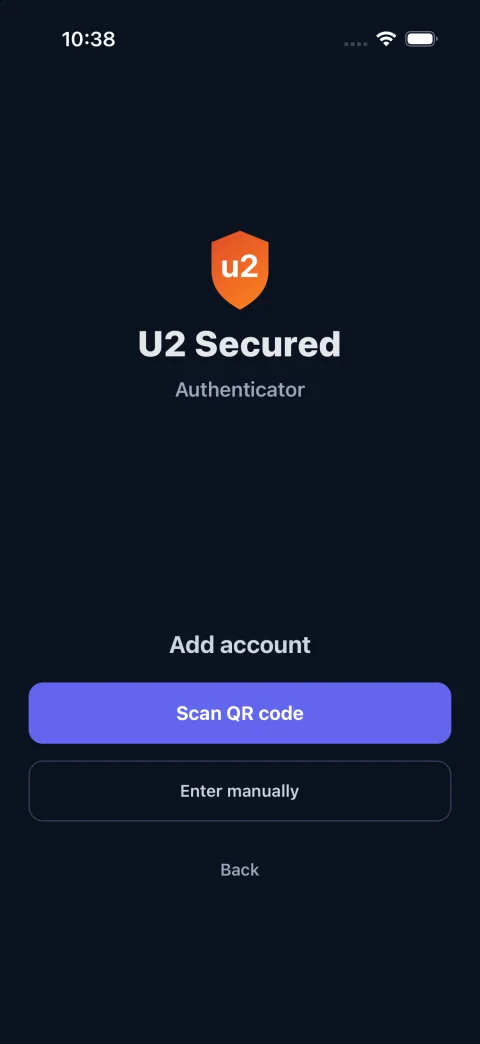
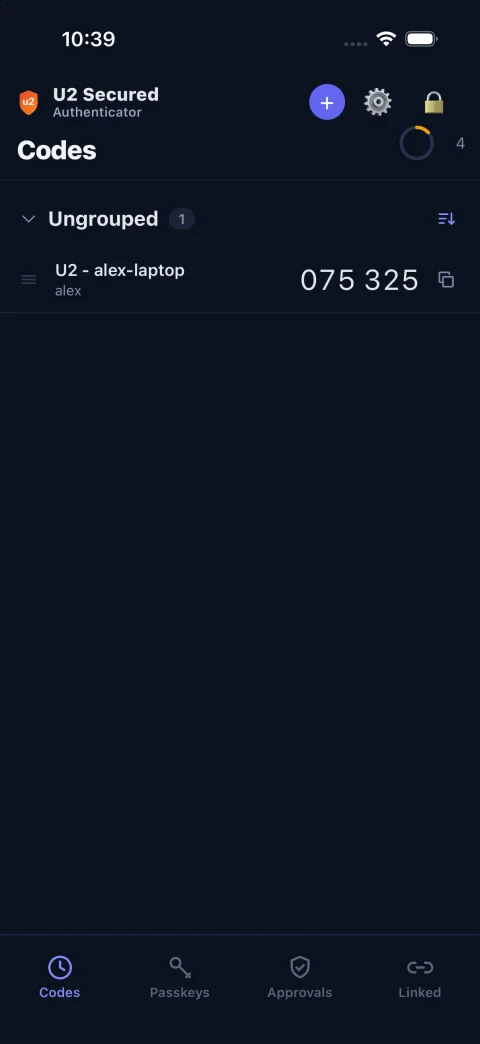
Add the entry, and the Codes tab shows a new code for this computer every 30 seconds. - 3
Keep the backup codes
Next come “Backup codes for alex on alex-laptop — each works once, on this machine only. Shown once:” and ten codes. Write them down and keep them away from this computer: they are the way in if the phone is lost.
- 4
Confirm a code
It asks “Before anything is switched on, type the 6-digit code your app shows for this entry.” A wrong code gets “That code did not match. Check the entry you just added, and wait for a fresh code.”, up to three tries; after that it stops, switches nothing on, and you run it again. A match prints “Code confirmed.”, adds you to the u2mfa group, turns on the sign-in profile and says “Two-factor is on for alex: login screen, lock screen, console, sudo, su.”
alex@alex-laptop: ~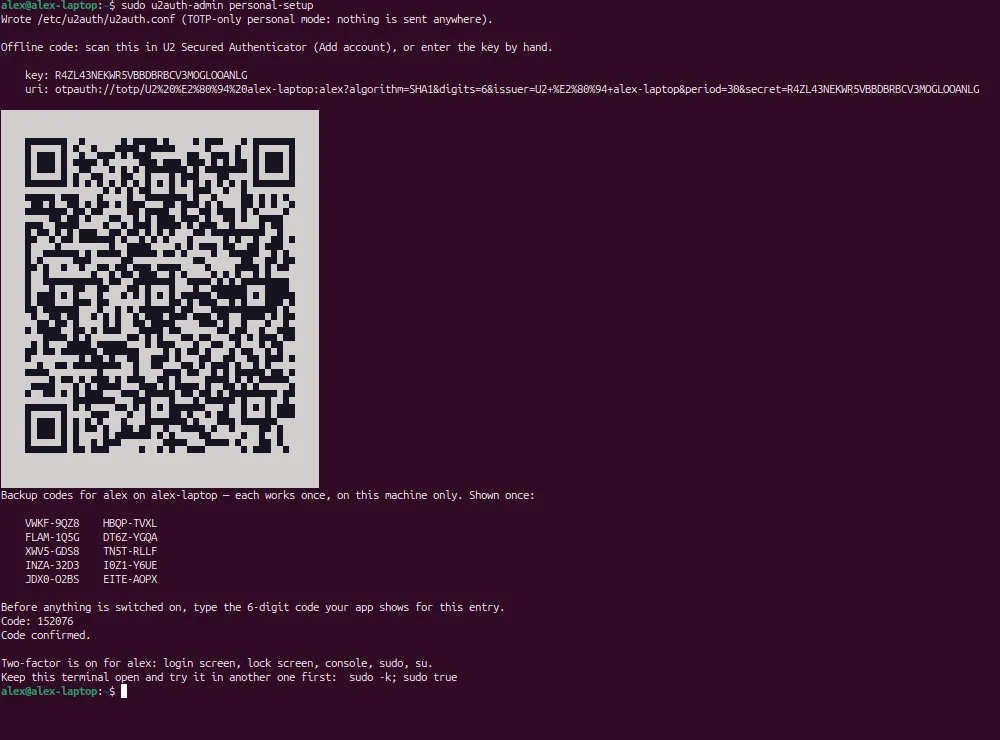
- 5
Test it in another terminal
a new terminalsudo -k; sudo truesudo asks for your password, then “Code from your authenticator app or a backup code:”. Type the code the app shows and the command runs. Keep the root shell open until this works.
- 6
Check for ways around it
bashsudo u2auth-admin check sudo u2auth-admin statuscheck lists anything that lets a sign-in skip U2 Secured, such as fingerprint login or automatic login, with the fix for each, and exits 1 if one is open now. status shows each login with its code entry and backup codes left.
Signing in every day
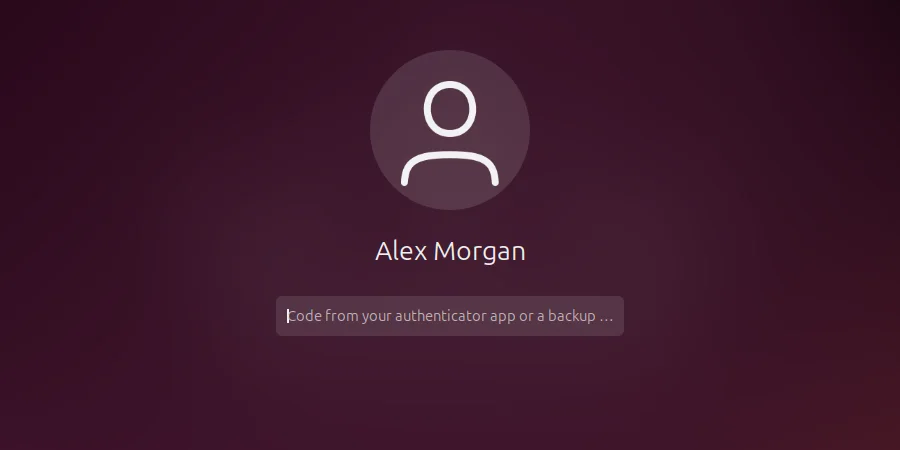
Type your password as usual. The screen then asks for “Code from your authenticator app or a backup code”: type the current 6-digit code from the app. The login screen, the lock screen, admin prompts, sudo and su all ask the same way, online or offline.
If a code is refused
| The screen says | What to do |
|---|---|
| Code not accepted. | Use the entry for this computer, and check the phone sets its time automatically. A backup code works only once. |
| Too many wrong authenticator codes. Use a backup code, or wait 15 minutes. | As it says. |
| A line saying how many backup codes are left | Shown after a backup code when two or fewer remain. Make a new set: sudo u2auth-admin backup-codes alex. |
Running it again
sudo u2auth-admin personal-setup --new-totp   # a new code entry, e.g. on a new phone
sudo u2auth-admin backup-codes alex           # a new set of 10; the old ones stop working
Running personal-setup again keeps your code entry, issues new backup codes (the old ones stop working) and asks for a code again. --new-totp replaces the code entry too, for example on a new phone: delete the old entry from the app afterwards.