Uninstall
Uninstalling puts Windows’ own sign-in back. Revoke the PC in the portal afterwards: uninstalling does not tell the portal.
- 1
Uninstall
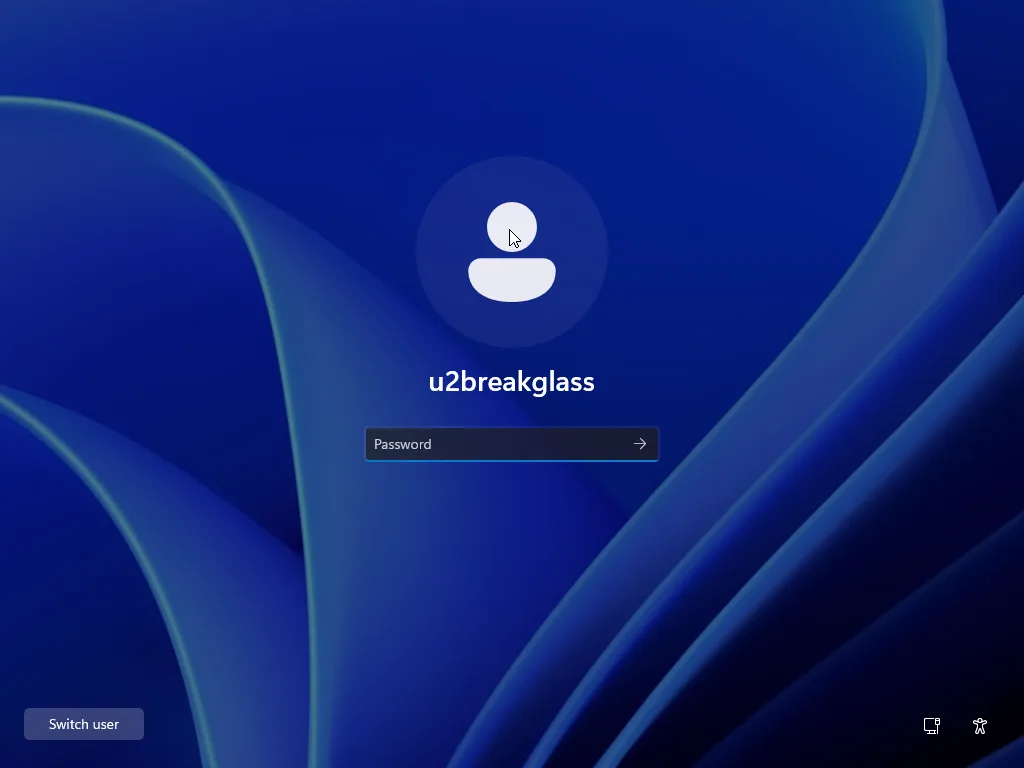
PowerShell (Administrator)msiexec /x u2secured-windows-0.2.0-x64.msi /qnOr Settings → Apps → U2 Secured → Uninstall. The sign-in hook goes first, then the files. Once the uninstall has completed, ProgramData\U2Secured (the configuration, the PC’s key, everyone’s offline codes and any sign-in events not yet sent) and the “U2 Secured Users” group are deleted. The sign-in screen shows Windows’ own tiles again.
- 2
Revoke the PC in the portal
The app → Machines → Revoke → Confirm revoke. As a reminder, the uninstall writes Event 1200: “Revoke this machine in the U2 Secured portal”. The “U2 Secured” Event Log source is deliberately left in place after uninstalling, so this event and any earlier ones stay readable in Event Viewer.
- 3
Users
Users keep the entry in their app. It goes on working on your other PCs.
Turn it off without uninstalling
u2auth-admin uninstall-hook --keep-data    # off: Windows' own tiles return, data kept
u2auth-admin install-hook                  # back on
uninstall-hook --keep-data removes the sign-in hook, so Windows’ own tiles come back, and keeps the configuration, the registration, the offline codes and the group. install-hook puts it back. Uninstalling the MSI always deletes the data.
Locked out?
Sign in as the emergency administrator: it is outside the group, so its password is enough. From there, take the person out of the group, enrol them again, or uninstall.