Use U2 Secured as the second factor for Microsoft Entra ID
For IT admins. Connect your Entra tenant, add U2 Secured as an external authentication method, and let Conditional Access ask your users to approve sign-ins on their phone.
How it works
Microsoft Entra ID can hand the “second factor” step of a sign-in to an external provider. When Conditional Access requires multifactor authentication, the user can choose U2 Secured. The U2 Secured sign-in page shows a number, the U2 Secured app on the user’s phone asks them to match it and approve, and then the user is returned to Microsoft. When the phone has no signal, the user can type a one-time code instead. Each user links their phone once through a setup page.
Before you start
- Microsoft Entra ID P1 or higher. Conditional Access and external authentication methods need it.
- The IT admin who connects the tenant signs in with a Global Administrator or Privileged Role Administrator account. U2 Secured checks that role during the connection.
- A U2 Secured developer account with a free or paid plan. Each approval counts toward the plan’s monthly approvals and each user toward its monthly active users.
- Your users need the U2 Secured app on their phone (iPhone or Android).
1. Connect your Entra tenant
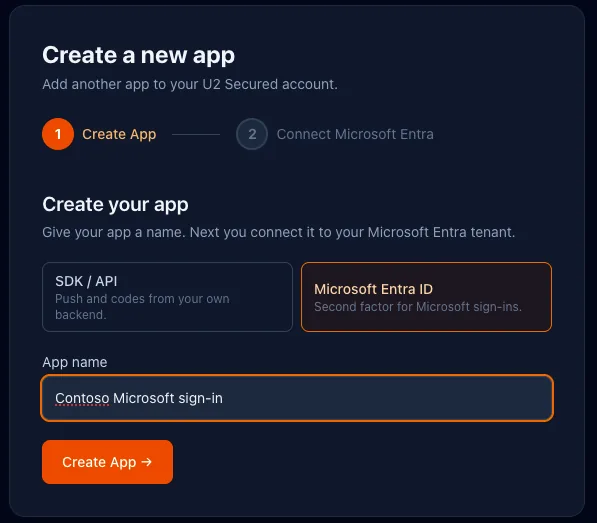
- 1In the U2 Secured portal, the IT admin chooses New app and picks the type “Microsoft Entra ID”, then gives the app a name.
- 2On the app’s Microsoft Entra tab, the IT admin chooses “Connect Microsoft Entra”.
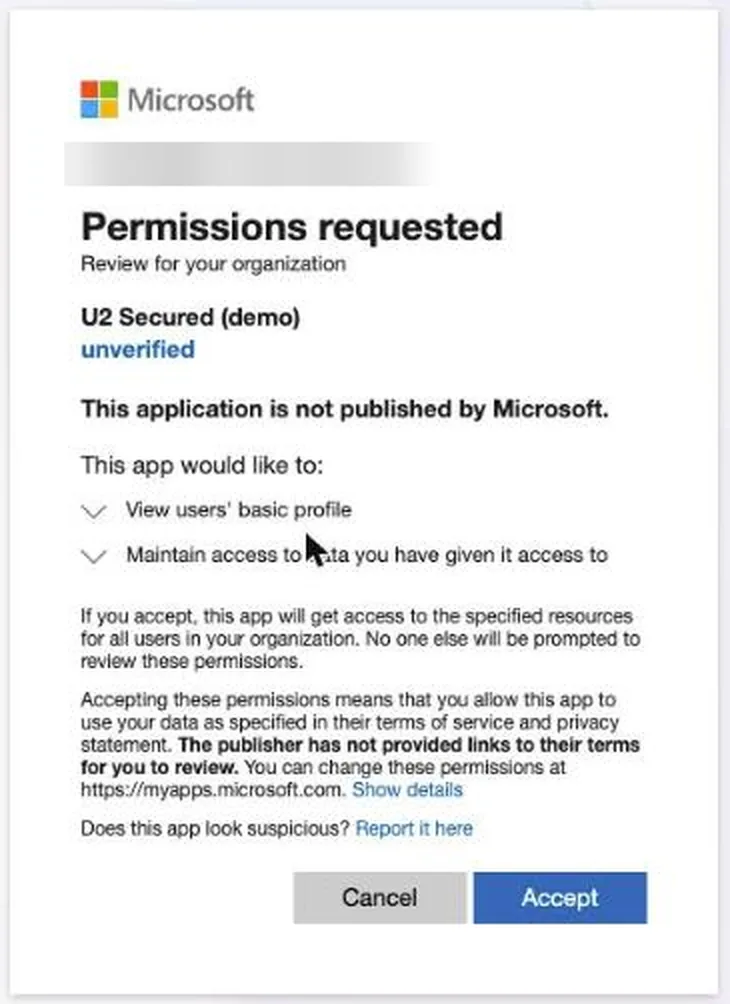
- 3Microsoft asks for administrator approval of the U2 Secured application for your tenant. The IT admin approves it.
- 4The IT admin signs in once more with a Global Administrator or Privileged Role Administrator account. U2 Secured uses that sign-in only to confirm the tenant and the role. It never sees the password.
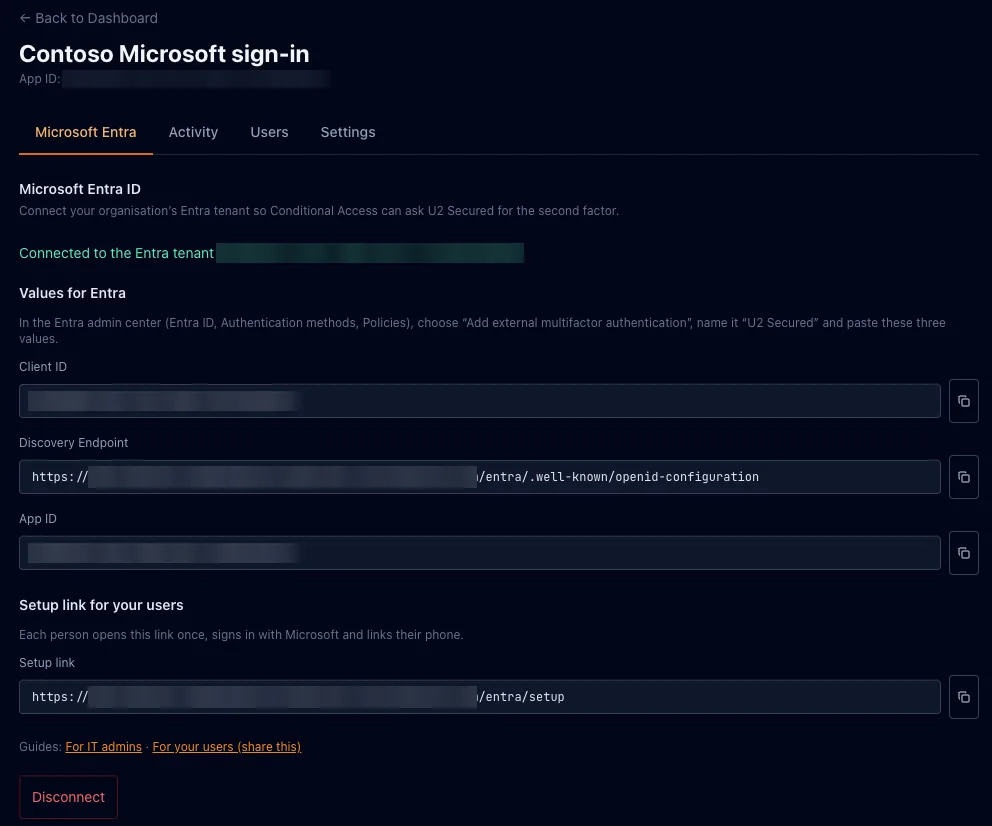
- 5The portal returns to the Microsoft Entra tab and shows “Connected”, with three values: Client ID, Discovery Endpoint and App ID. Keep this page open for the next step.
2. Add U2 Secured as an external method in Entra
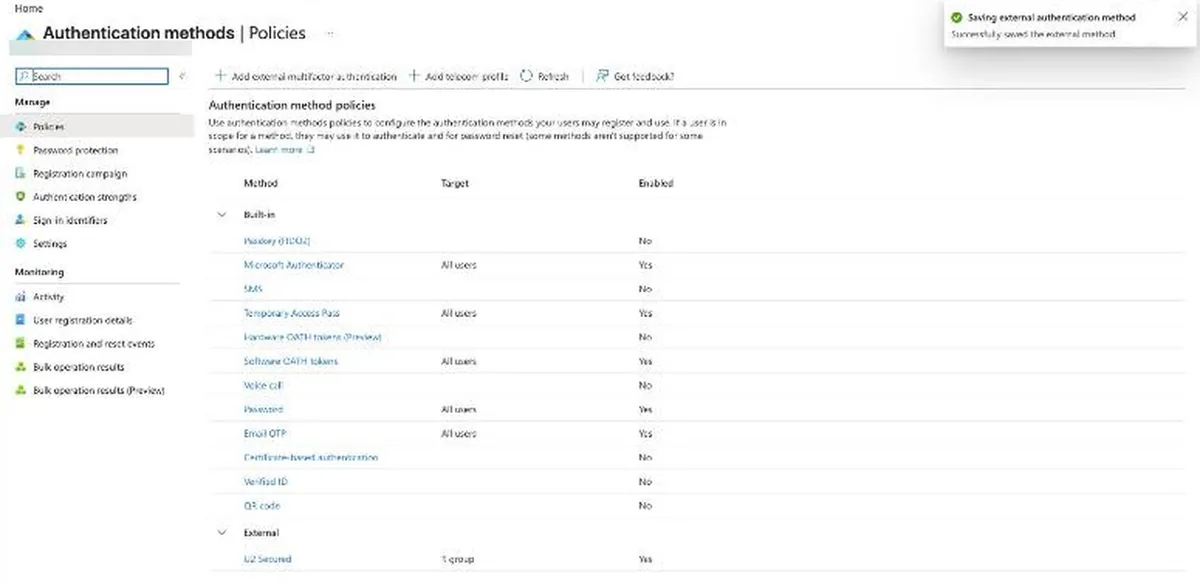
- 1In the Microsoft Entra admin center, the IT admin opens Entra ID, then Authentication methods, then Policies.
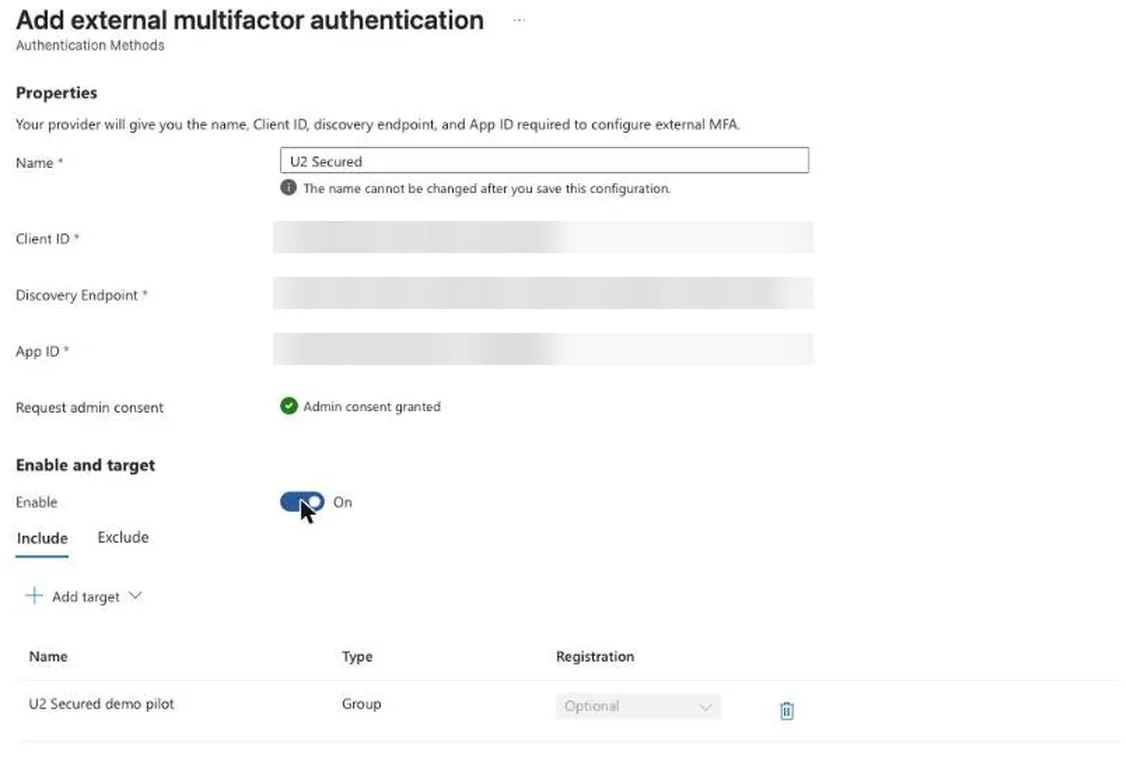
- 2The IT admin chooses “Add external multifactor authentication”.
- 3In Name, the IT admin types “U2 Secured”, then pastes the Client ID, Discovery Endpoint and App ID values from the portal’s Microsoft Entra tab into the fields of the same names.
- 4“Request admin consent” shows “Admin consent granted”: connecting the tenant in step 1 already gave that consent.
- 5The IT admin sets Enable to On. Under Include, the IT admin chooses Add target, then Select targets, and picks the pilot group. If “All users” is listed, the IT admin removes it, so the method starts with the pilot group only.
- 6The IT admin chooses Save at the bottom of the form.
3. Require multifactor authentication with Conditional Access
The external method only appears when a Conditional Access policy asks for multifactor authentication.
- 1Create a policy named “Require multifactor authentication”.
- 2Assign it to the pilot group only. Exclude your emergency (break-glass) accounts.
- 3Target all cloud apps, or the apps you want to protect first.
- 4Under Grant, choose “Require multifactor authentication”. Do not choose an authentication strength: Microsoft does not let an external method satisfy one.
- 5Turn the policy on. When the pilot group signs in without trouble, widen the group until it covers everyone.
4. Protect the setup page with its own policy
The setup page, where each person links their phone for the first time, signs the user in with Microsoft through an application called “U2 Secured” in your tenant. Add a second policy for that application.
- 1Create a policy named “Protect U2 Secured setup”.
- 2Assign it to all users who will link a phone.
- 3Under target resources, choose the “U2 Secured” application.
- 4Under Grant, choose “Require multifactor authentication”. For new staff who have no other method yet, issue a Temporary Access Pass, which satisfies it.
Without this policy, the first link is protected by the password alone
Whoever signs in to the setup page with only a user’s password can link their own phone to that user. From then on, that phone can approve that user’s sign-ins. U2 Secured will not replace a phone that is already linked, but it cannot tell a first link by the real user from a first link by someone who knows the password. Only the policy above closes that gap.
A Temporary Access Pass stops Microsoft asking U2 Secured
A Temporary Access Pass is the way to onboard a new user who has no other sign-in method yet: they sign in to the setup page with their password and the pass, and link their phone. Make the pass one-time use, with a short lifetime such as one hour. While a pass is active, Microsoft accepts it as multifactor authentication and never sends that user to U2 Secured. So once the user’s phone is linked, delete the pass: in the Entra admin center, open the user, then Authentication methods, and delete the Temporary Access Pass.
5. Send your users the setup link
The setup link is on the Microsoft Entra tab of the app. Send it to each user together with the user guide below, which is written for people who are not technical.
What users see the first time they sign in
On a user’s first multifactor sign-in after setup, Microsoft may show its own registration screen asking them to install Microsoft Authenticator. Tell users to choose “Other options”, then “External MFA” (Microsoft says it will use U2 Secured and take them to another page), then “Next”. The U2 Secured page opens and they approve on their phone. Microsoft then shows “Sign-in method added” and they choose “Done”. This happens once.
Right after you add the method, Microsoft may say “Verification failed”
For a while after an IT admin adds or changes the external authentication method, Microsoft can answer a user’s registration with “Verification failed. Try again in a few minutes” before it ever sends them to U2 Secured. It is Microsoft’s own settings still spreading, not a fault with the user or their phone. Wait, then try again; in our own testing it cleared within a few hours. Avoid deleting and re-creating the method while you wait, which starts the delay again.
Where U2 Secured is asked
U2 Secured is asked when people open Microsoft 365 and other apps that a Conditional Access policy covers. Windows sign-in does not go through Conditional Access, so U2 Secured is not asked there. A PC that is offline signs in with its cached Windows sign-in, with no Microsoft or U2 Secured step at all. The one-time code is for a phone with no signal while the computer is online.
A new or lost phone
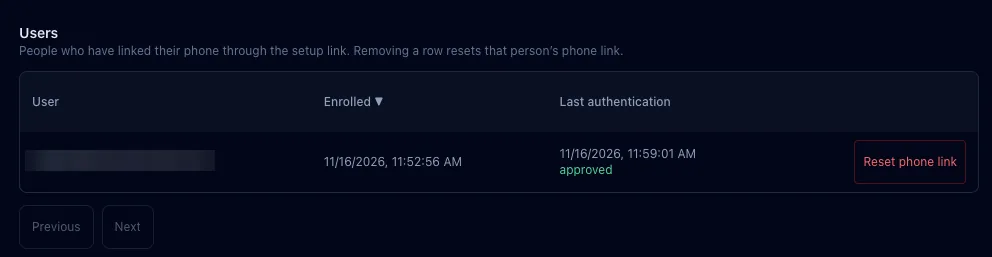
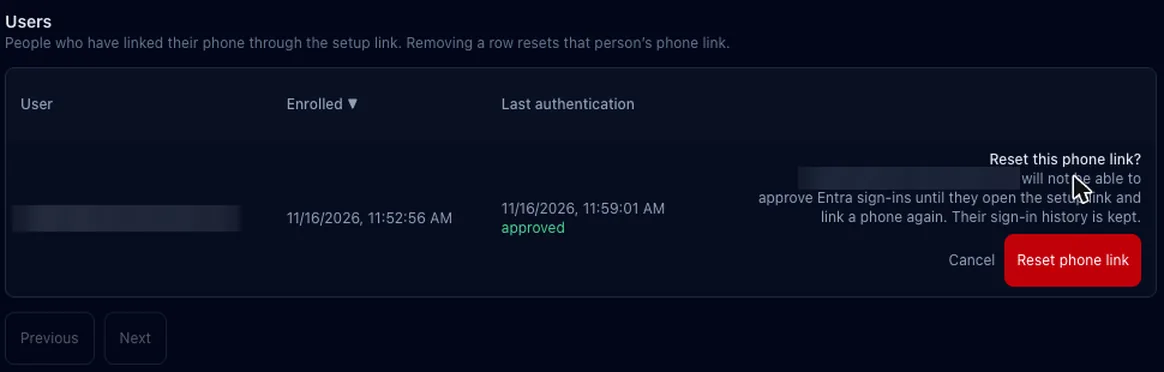
A person’s phone link cannot be replaced by opening the setup page again. The IT admin opens the app’s Users tab, finds the person and chooses “Reset phone link”. The person then opens the setup link and links the new phone. Sign-in history is kept.
When the phone has no signal
On the setup page, each person is shown a key once, to scan into the Codes tab of the U2 Secured app. With it, they can choose “Use a code instead” on the sign-in page and type the current six-digit code. Someone who skipped that step can use push approvals only, until the IT admin resets their phone link.
When the plan’s monthly limit is reached
Your U2 Secured plan caps push sign-ins each month (100 on the free plan) and monthly active users. When a cap is reached, no push is sent: users who set up a one-time code can still sign in with it, unless the app’s risk settings require approval on the phone, and everyone else is refused until the next month or until you upgrade in Billing. The developer account gets a usage email and a portal notification at 80%, 90% and 95% of each cap and when it is reached.
What it does not do
- It cannot satisfy Conditional Access authentication strengths, because Microsoft does not allow external methods to. A policy that requires an authentication strength cannot use U2 Secured, so keep a separate “Require multifactor authentication” policy for those users.
- It works with the global Microsoft cloud only. It does not support US Government or 21Vianet tenants.
- It does not protect Windows sign-in on Entra-joined PCs. External methods do not apply there.
- It does not sync users from your directory. A user appears in the Users tab after linking a phone.
- Do not set the new-device action to “deny” in the app’s risk settings (Security page): for an Entra app it blocks every new user permanently, because a user’s first sign-in always counts as a new device.
Troubleshooting
| What you see | What to do |
|---|---|
| The Entra tab says “That account is not a Global Administrator or Privileged Role Administrator” | The account used for the connection does not hold either role. Connect again and sign in with one of those roles. |
| The Entra tab says “You signed in to a different Microsoft tenant than the one that was approved” | The sign-in was for a different Microsoft tenant than the one that approved the application. Connect again with an account from the tenant you are connecting. |
| A page says “This Microsoft Entra tenant is already connected to another U2 Secured app” | Only one U2 Secured app can serve a tenant. Disconnect it in the other app first, or ask support. |
| The Entra tab says “The approval was cancelled or refused in Microsoft” or “Microsoft did not record the approval” | Microsoft did not record the administrator approval. Connect again, sign in as an administrator and choose Accept. |
| The Entra tab says “This app is already connected to an Entra tenant” | Disconnect it first to connect a different one. |
| A user sees “Your phone is not linked to U2 Secured yet” | The user has not linked a phone. Send them the setup link and the user guide. |
| A user sees “Your phone is already linked” on the setup page | Their phone is linked. For a new phone, reset their phone link in the Users tab. |
| A user sees a usage limit message | The U2 Secured plan has reached its monthly limit. Upgrade the plan in Billing. |
Before you rely on it
Roll it out to a pilot group, keep an emergency account that is excluded from the policy, and confirm sign-in works for that group before you widen the policy.