Linking your phone to U2 Secured for work sign-in
Your organisation now uses U2 Secured to check it is really you when you sign in to Microsoft. You set it up once, which takes about five minutes.
We never ask for your Microsoft password
U2 Secured never asks you for your Microsoft password. You sign in on a Microsoft page, as you always do. If anything asks you to type your Microsoft password into the U2 Secured app, stop and tell your IT admin.
Set it up once
You need your phone and a computer. Follow these steps in order.
- 1Install the U2 Secured app on your phone from the App Store or Google Play.
- 2On your computer, open the setup link your IT admin sent you.
- 3Choose “Sign in with Microsoft” and sign in with your work account. Microsoft may ask you to approve the sign-in.
- 4The page shows a code. On your phone, open U2 Secured, go to Linked accounts, type the code into the “Pairing code” box and tap “Link”.
- 5The page then shows a square code (QR code). On your phone, open the Codes tab in U2 Secured and scan it.
- 6Type the six-digit code that appears in the Codes tab into the page to confirm, then choose the button to finish.
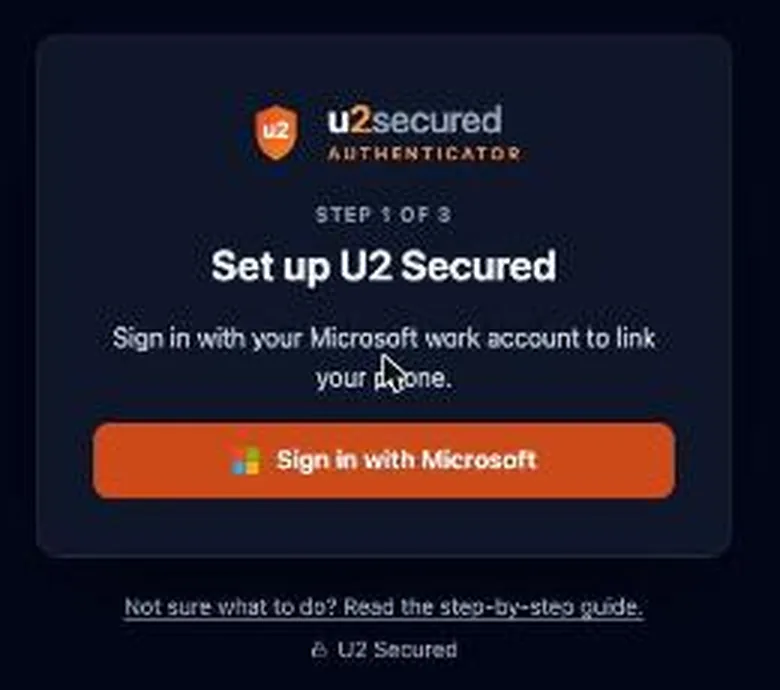
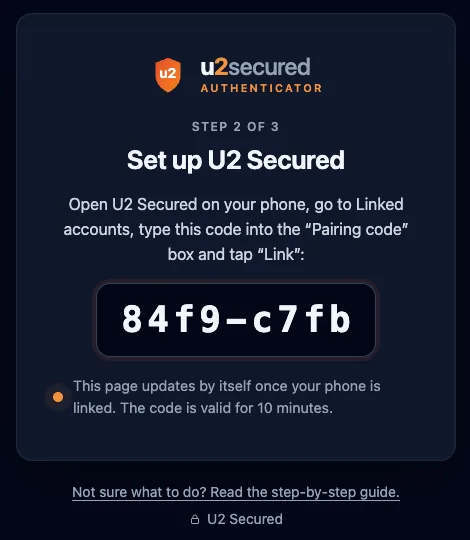
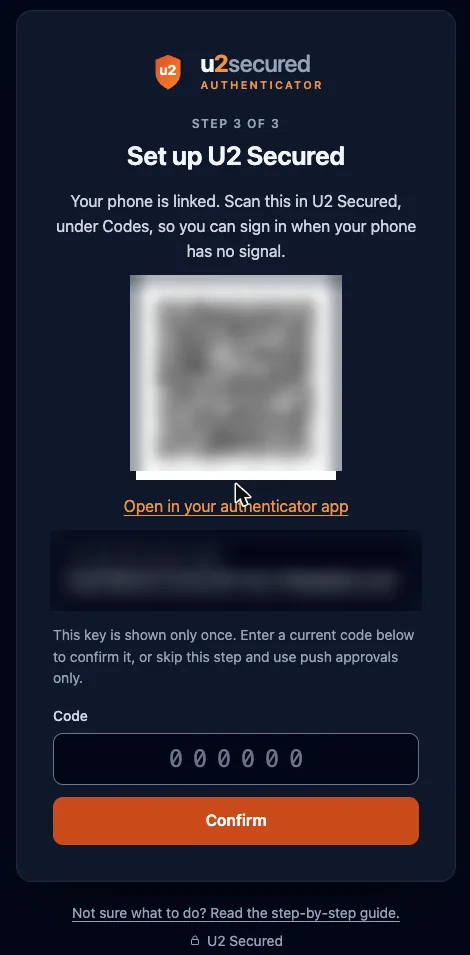
When the page says you are done, your phone is linked. You do not have to repeat this.
The first time you sign in after setup
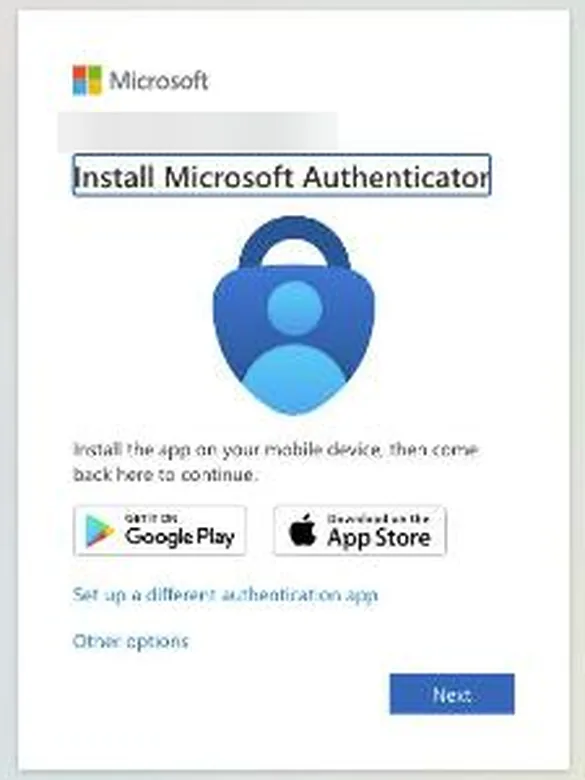
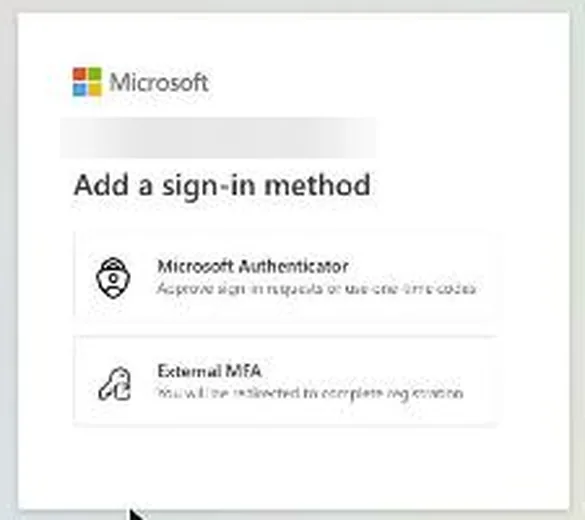
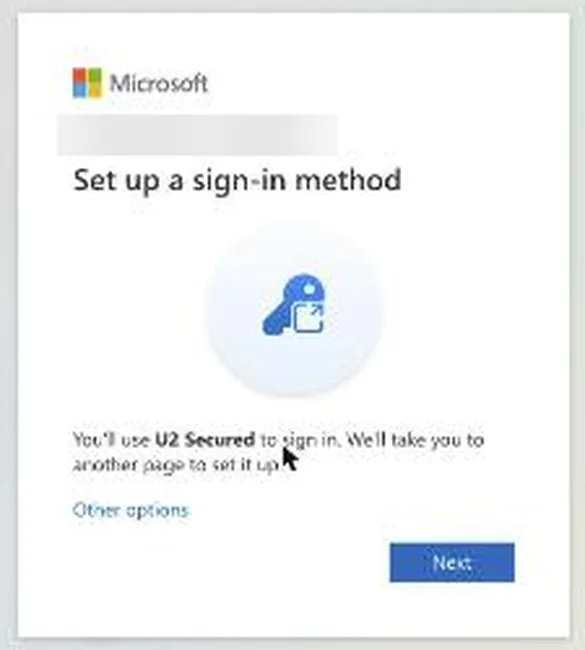
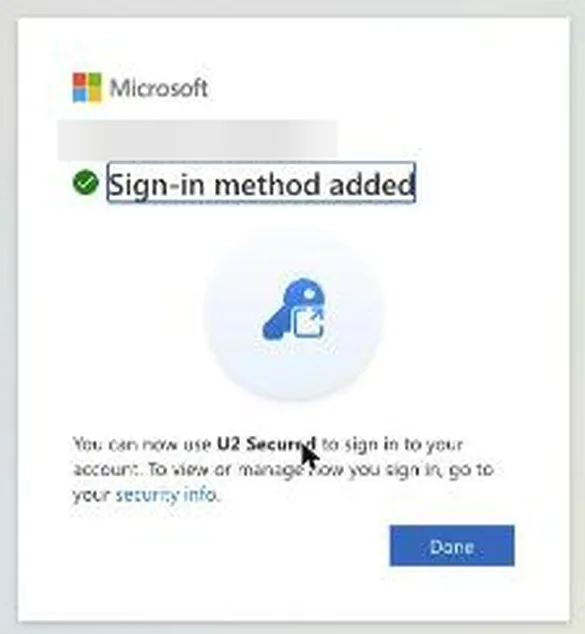
Microsoft may show a screen asking you to install Microsoft Authenticator. You do not need it. Choose “Other options”, then “External MFA” (U2 Secured), then “Next”. The U2 Secured page opens: approve on your phone as usual. Microsoft then shows “Sign-in method added”. Choose “Done”. You only see this once.
Every day: signing in
- 1Sign in to Microsoft as usual. When Microsoft asks for another way to verify it is you, choose “U2 Secured”.
- 2The page shows a number. Open the U2 Secured notification on your phone and choose the same number.
- 3Approve it. The page carries on by itself and you are signed in.
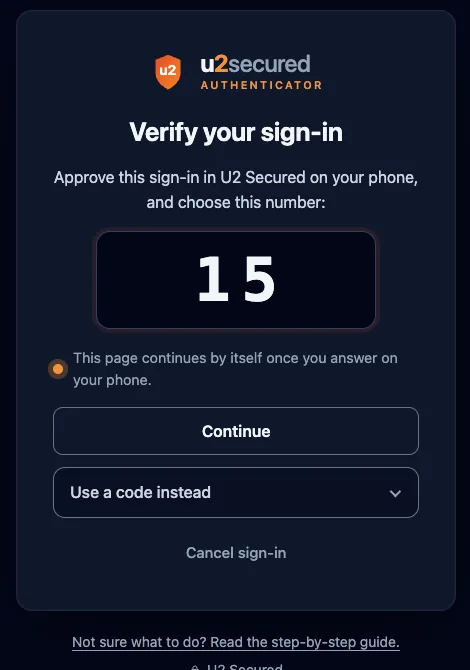
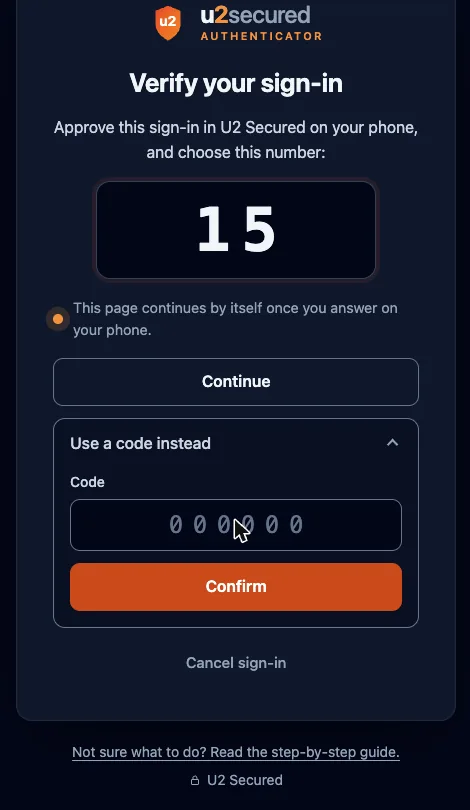
If you did not try to sign in, do not approve. Choose to deny and tell your IT admin.
No phone signal
On the sign-in page, choose “Use a code instead”. Open the Codes tab in U2 Secured, find the six-digit code for your work account and type it in. The code changes every 30 seconds, so use the current one.
A new or lost phone
Ask your administrator to reset your U2 Secured link. After they do, open the setup link again and follow the steps above with your new phone. You cannot replace the phone yourself.
If something goes wrong
- 1The page says your phone is not linked: follow “Set it up once” above.
- 2The page says your phone is already linked and you have a new one: ask your administrator to reset your link.
- 3You do not get the notification: open U2 Secured on your phone, check it has a connection, and try again. Otherwise choose “Use a code instead”.
- 4Anything else: contact your IT admin.