Two-factor sign-in for Windows: sign-in, unlock, Remote Desktop
U2 Secured for Windows adds its own tile to the Windows sign-in screen. After a protected user’s password is accepted, their phone shows three numbers and the sign-in goes through only when they tap the one on the screen. When the PC can’t reach U2 Secured, a code from an authenticator app or a one-time backup code gets them in, checked on the PC itself.
What it protects
- Signing in at the Windows sign-in screen.
- Unlocking a locked session.
- Remote Desktop sign-ins to the PC, including reconnecting to a session.
- Only for members of the local group “U2 Secured Users”. Everyone else signs in with their password alone, as before.
What it does not cover
- UAC elevation prompts and the other credential dialogs Windows shows inside a session.
- Network sign-ins such as file shares, and sessions through the OpenSSH Server or WinRM services. u2auth-admin check warns when either service is running.
- Domain and Microsoft Entra ID accounts: not supported. Protect local accounts.
- Microsoft accounts (signing in with an email address): not yet tested. Keep them out of the group until they are.
Where it has been tested
Windows Server 2025 on a PC with a TPM, against the live U2 Secured service, with a real iPhone, on 26 October 2026: a silent install that registers the PC, sign-in, unlock, Remote Desktop, a denied push, offline authenticator and backup codes, a push left unanswered, the sign-in log, and uninstalling. Windows 10 and Windows 11 have not been tested yet. The installer accepts 64-bit Windows 10, Windows Server 2016 and later.
A fleet, or your own PC
PCs you manage
Office PCs, shared machines, servers you reach by Remote Desktop. One U2 Secured app in this portal covers them all: users pair their phone once, and every PC pushes to them.
- A Developer app (free for 100 pushes a month)
- Push with number matching, codes offline
- Silent install with a deployment tool such as Intune
Your own PC
One person, one Windows PC. After the password, type the 6-digit code from your authenticator app. It is checked on the PC and nothing is sent anywhere.
- No U2 Secured account needed
- Any authenticator app
- Set up with u2auth-admin personal-setup
What the sign-in screen looks like
On a PC with U2 Secured, every account’s tile says “U2 Secured” under the name, and Windows’ own tiles, PIN and Windows Hello included, are hidden. Members of the group are asked for U2 after their password; everyone else is signed in as soon as Windows accepts the password.
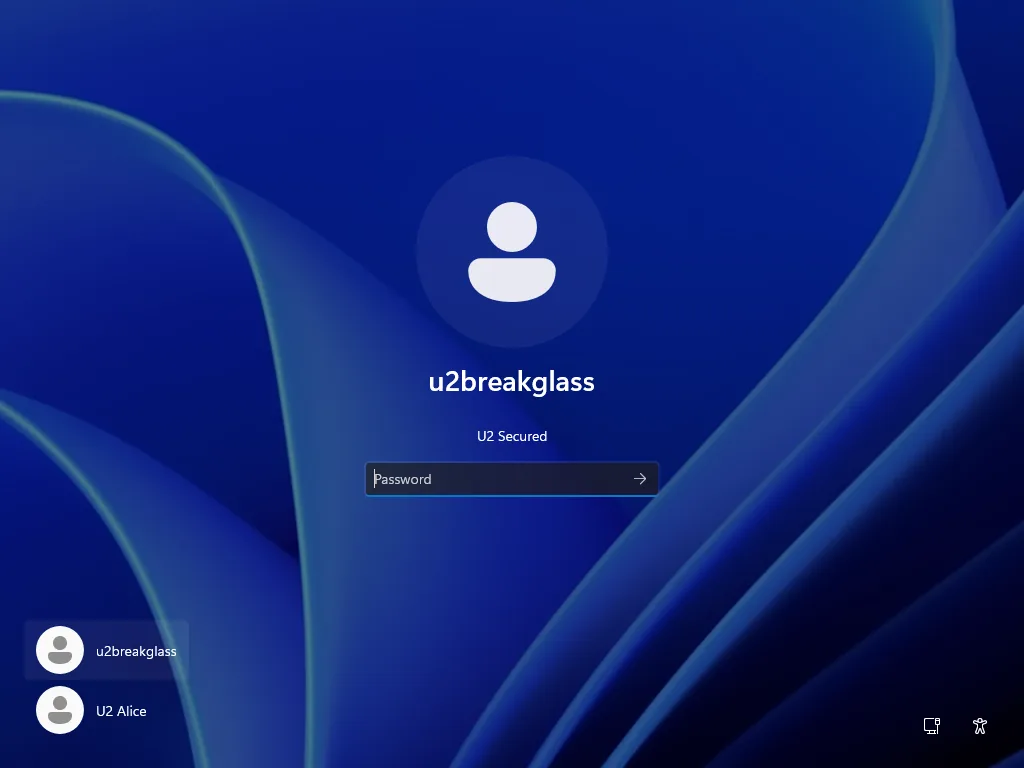
How a sign-in works
- 1The user picks their account, or Other user, and types their Windows password. Windows checks it first: a wrong password fails as usual, and nothing reaches the phone.
- 2The PC sends a push. The tile shows “Select 88 in U2 Secured on your phone to approve.”, and the phone shows three numbers under “Windows sign-in as alice on reception-pc” (“Windows unlock as …” or “Remote Desktop sign-in as …” for the other two).
- 3The user taps 88 on the phone and Windows signs them in. There is nothing to press on the PC.
- 4Deny, or a wrong number, shows “U2 Secured did not approve this sign-in.”, and the phone is not asked again.
- 5No answer within about a minute, or no connection to U2 Secured: the tile asks for a code from an authenticator app or a backup code instead.
Keep one administrator outside the group
Keep at least one local administrator account that is never in “U2 Secured Users”, with a strong password stored somewhere safe. It signs in with its password alone, through the same tile, and it is how you get back in when a phone, the codes or the service are not available. Its sign-ins are recorded as not_gated (Event 1002).
What you’ll need
- A U2 Secured app in this portal for your PCs, and a registration token from its Machines tab.
- Each user’s phone with the U2 Secured Authenticator app.
- Administrator rights on each PC, 64-bit Windows, and a local account with a password for each person to protect.
- The emergency administrator above.
The rollout, page by page
- 1Install the MSI on every PC, with a registration token. Nobody is asked for U2 yet.
- 2Enrol each person, then add them to “U2 Secured Users”.
- 3Verify a sign-in, an unlock and the offline codes, and learn where the Event Log keeps each decision.
- 4Read the sign-in log in this portal.
Try one person first
Add one person to the group and sign in as them while the emergency administrator is still signed in somewhere, before adding everyone else.